> For the complete documentation index, see [llms.txt](https://docs.voting.works/vxsuite-user-manual-v4/llms.txt). Markdown versions of documentation pages are available by appending `.md` to page URLs; this page is available as [Markdown](https://docs.voting.works/vxsuite-user-manual-v4/vxmarkscan/voting-sessions.md).
# Voting Sessions
### Activating a Voting Session
{% hint style="warning" %}
A voter may bring their own Personal Assistive Technology (PAT) device (ex. jelly bean switch, sip and puff device, etc.) or headphones. It must have a 3.5mm plug or connector. Once plugged in, a test screen will pop up to assist in configuration. See [System Administrator Functions & System Diagnostics ](/vxsuite-user-manual-v4/vxmarkscan/diagnostics.md)for instructions.
{% endhint %}
{% hint style="info" %}
Ensure headphones are sanitized before each use. An option for doing this is using disposable earpad covers as listed in the [Supply List](/vxsuite-user-manual-v4/miscellaneous/supply-list.md). Apply a fresh cover on each earpad before use, and remove them afterward.
{% endhint %}
If a voter chooses to use VxMarkScan:
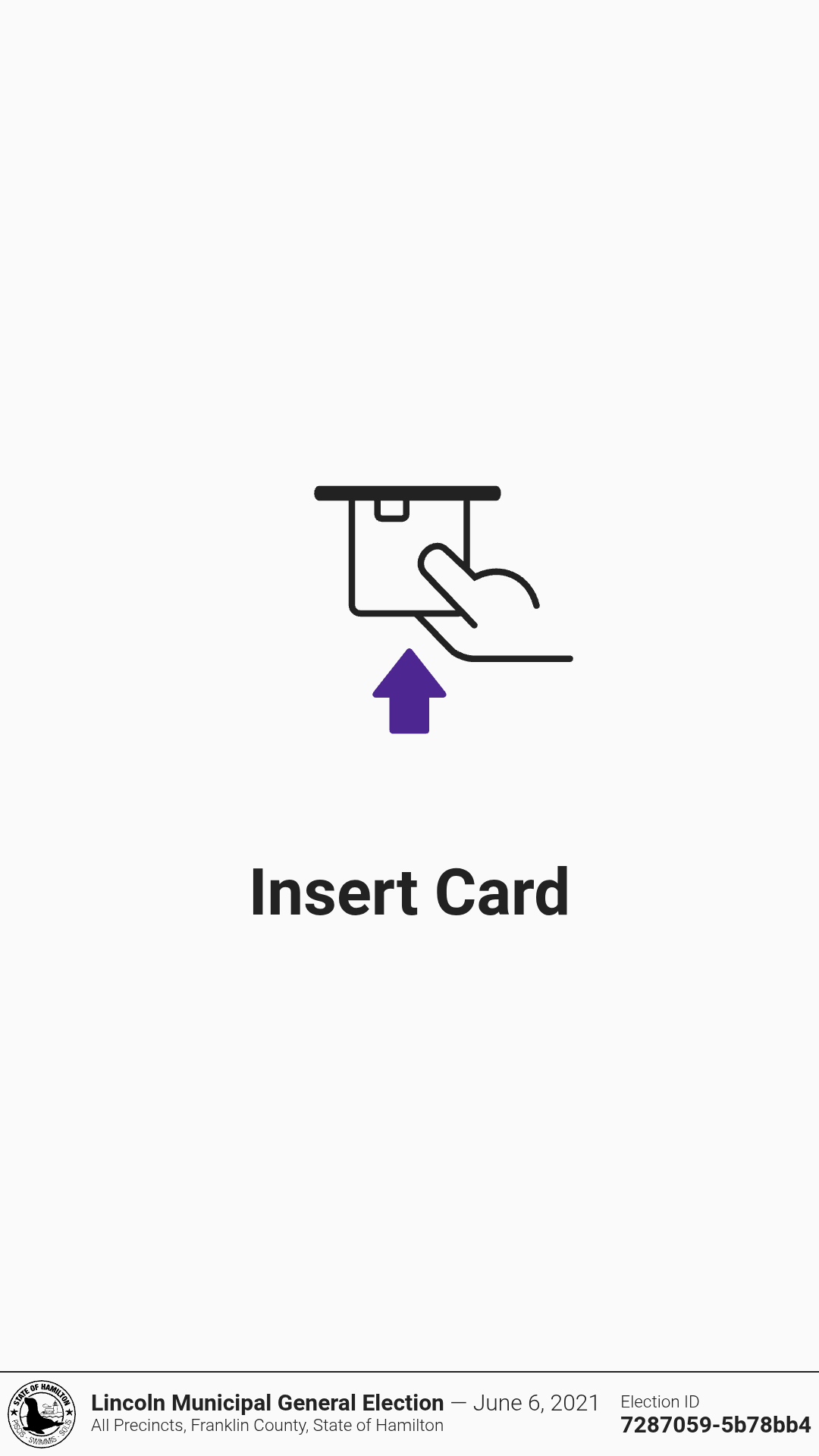
* [ ] Insert a poll worker card into the card reader beneath the accessible controller
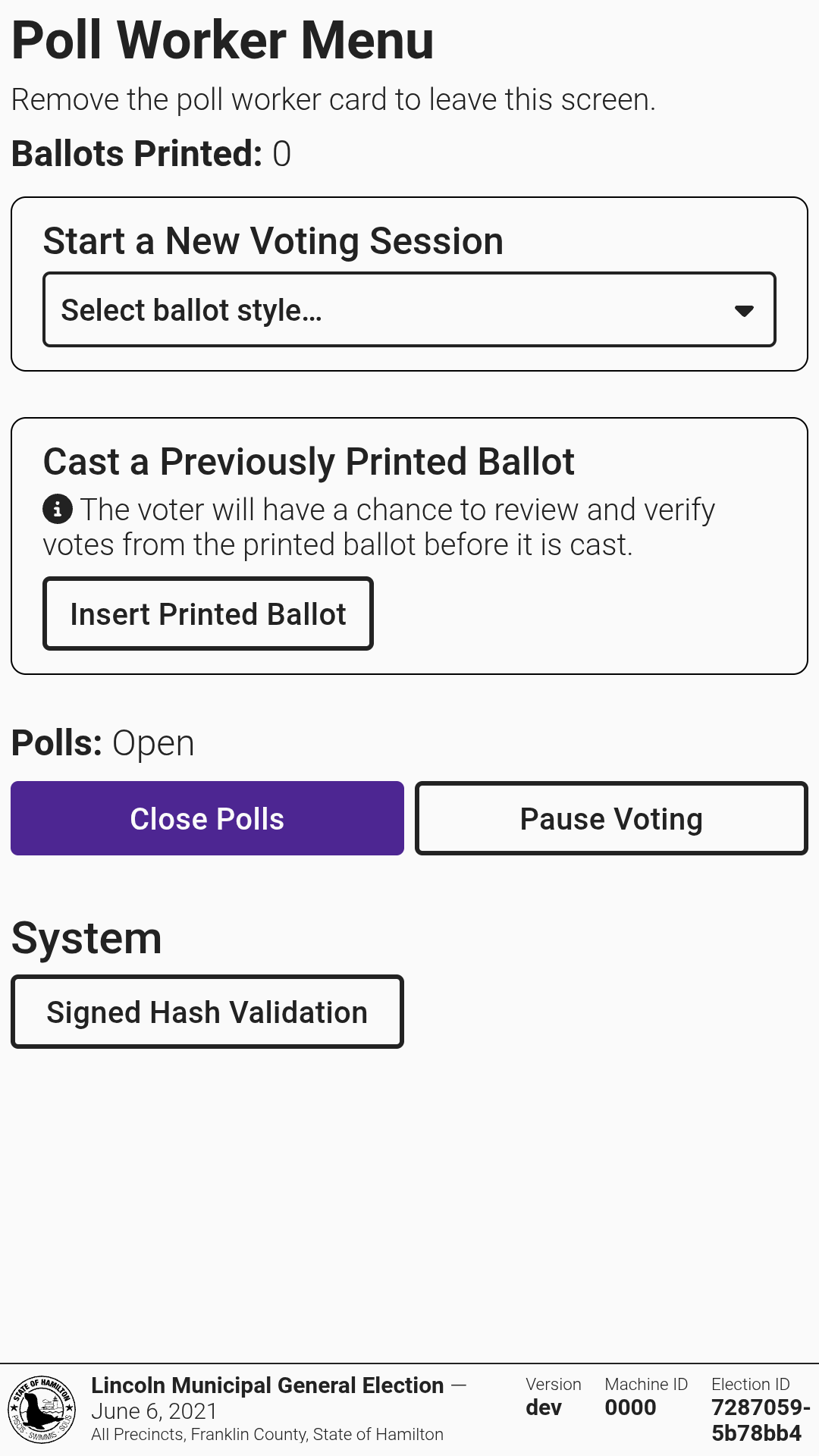
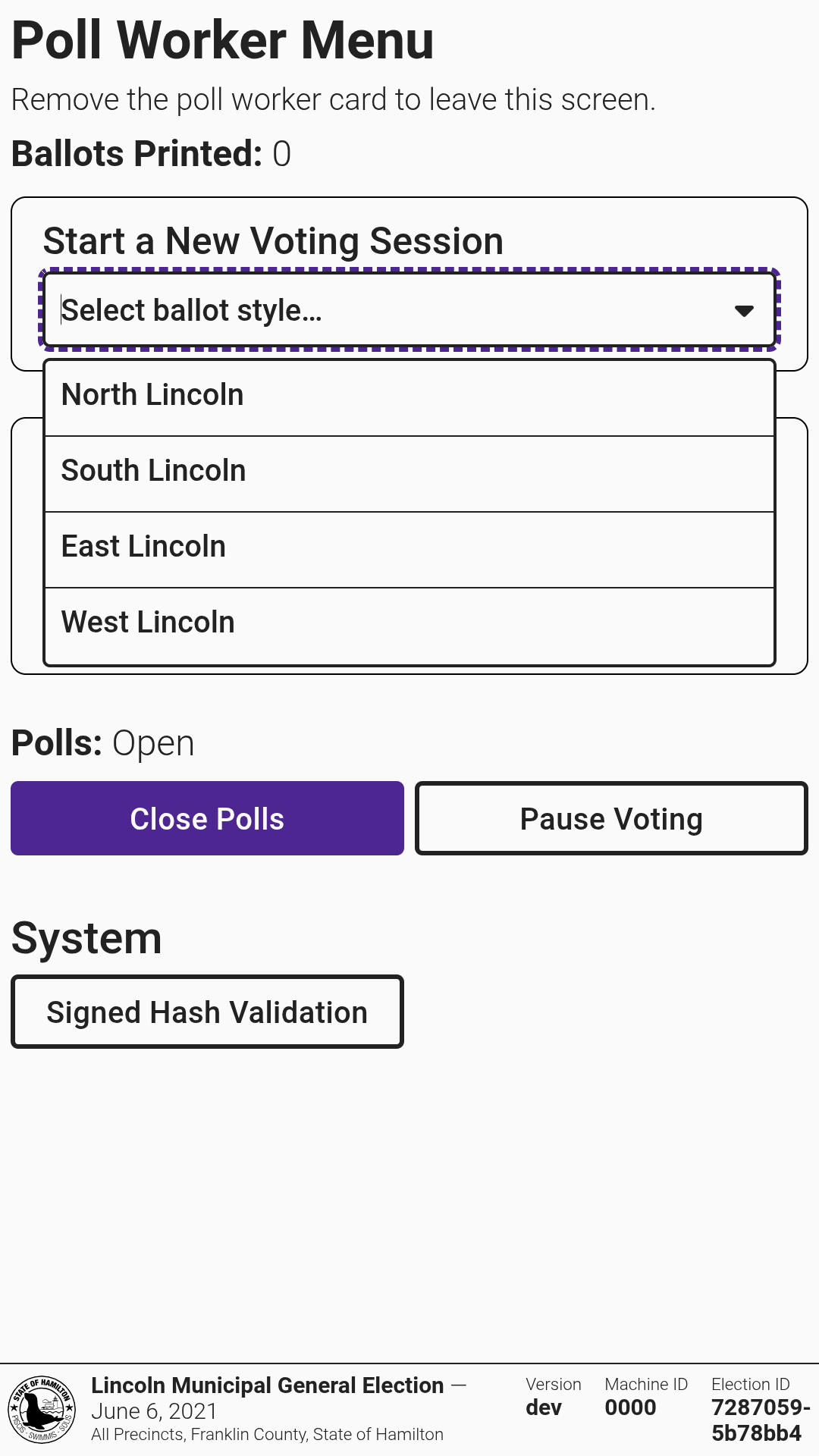
* [ ] Select the voter's ballot style
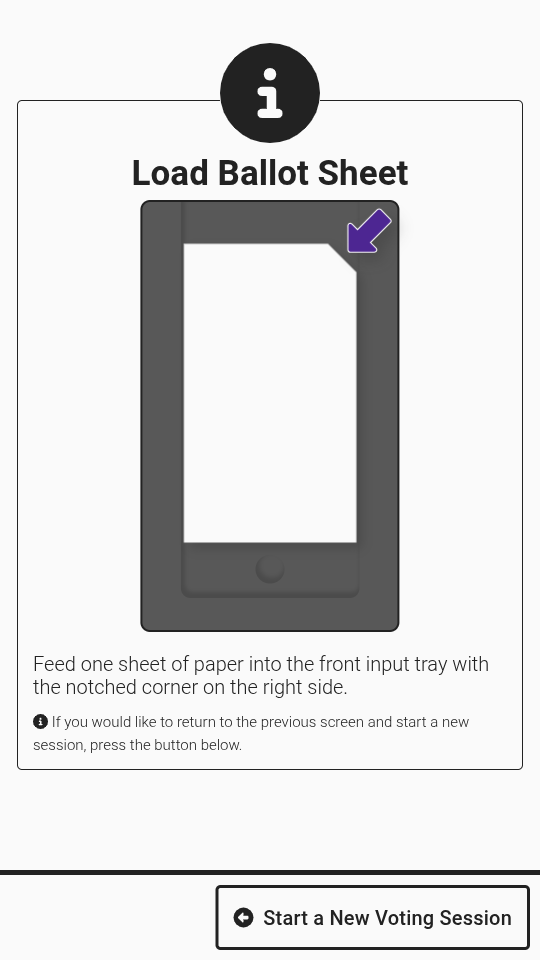
* [ ] When prompted, feed one sheet of paper into the front input tray
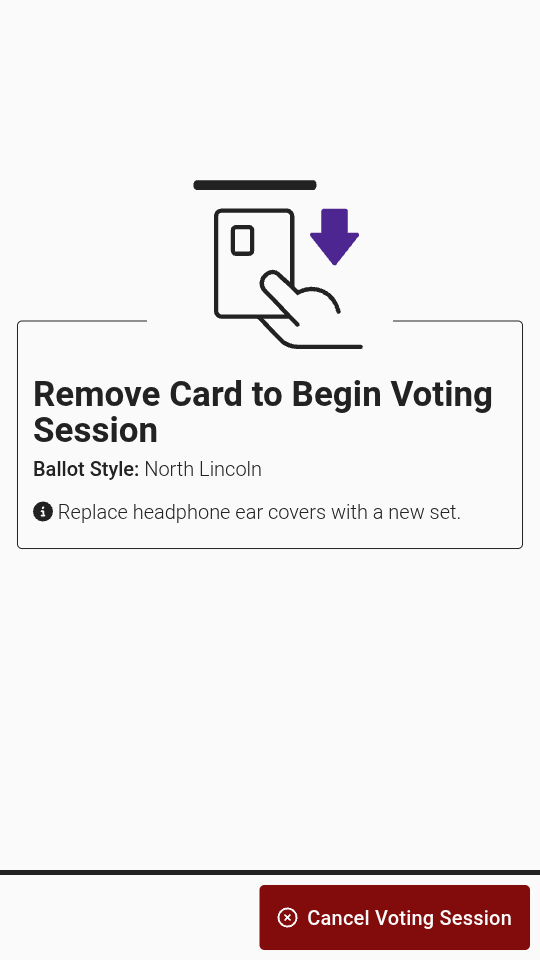
* [ ] Once loaded, the screen will show that the voting session is active
* [ ] Review the precinct and ballot style to ensure it was selected correctly for the voter
* [ ] Remove the poll worker card
{% hint style="warning" %}
If the wrong ballot style or precinct was selected, insert the poll worker card (if not already inserted) and select *`Cancel Voting Session`* to return to the poll worker menu.
{% endhint %}
### Marking a Ballot
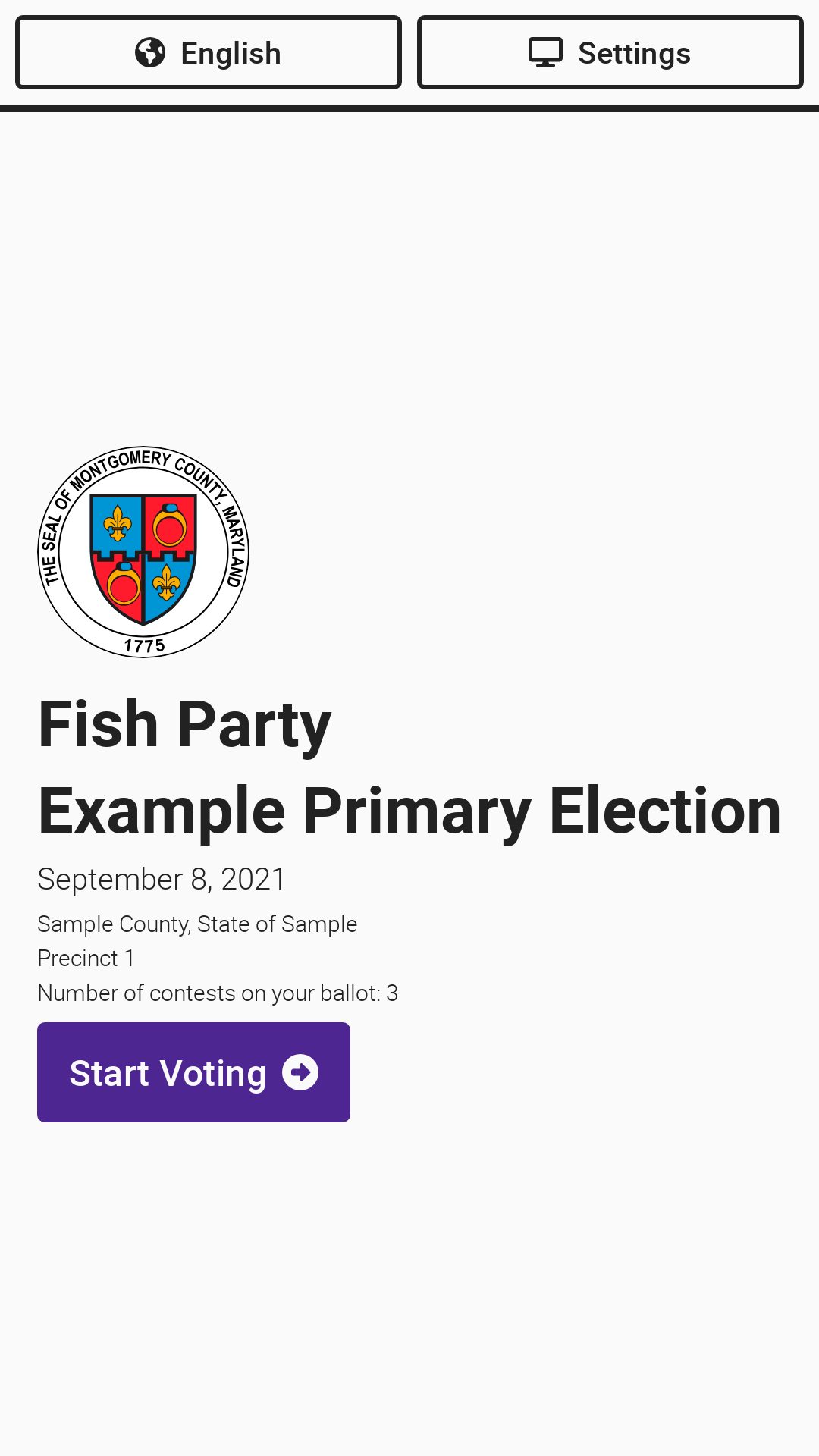
Let the voter know they can begin voting by selecting *`Start Voting`*.
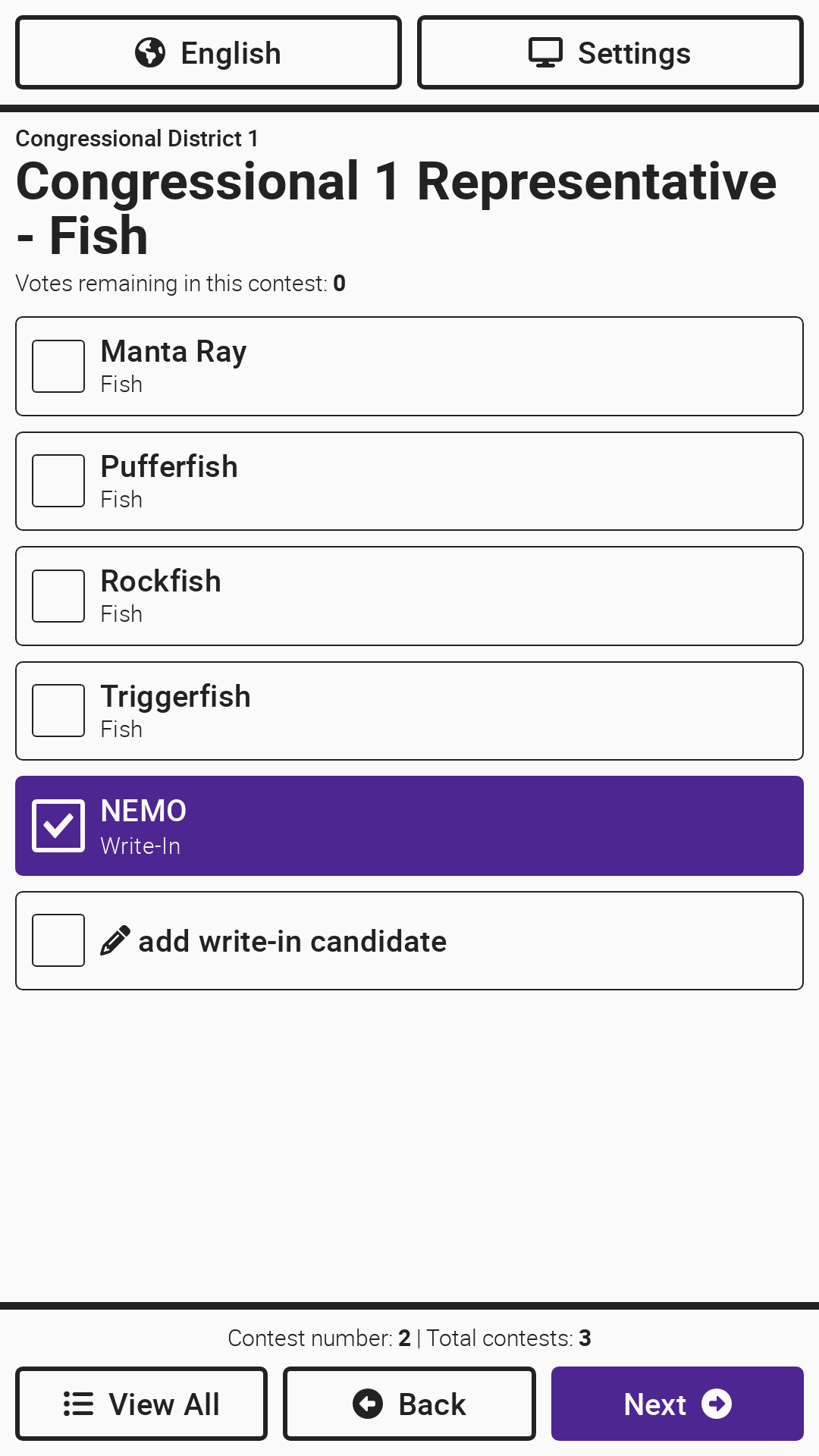
One contest will display at a time. The voter will select the candidate(s) of their choice. The voter moves to the next contest by selecting *`Next`*. The voter can skip a contest by selecting *`Next`* without making a selection. To return to a previous contest, select *`Back`*. A *`More`* button will display if there are more candidates or text than fit on a single screen. The *`View All`* button can be used to jump to a review screen summarizing all contest selections, described in greater detail below.
{% hint style="info" %}
If a voter would like to change a selection, they must first deselect a candidate previously selected.
{% endhint %}
### Entering a Write-In
To enter a write-in candidate, select *`add write-in candidate`* and use the keyboard to type in the candidate's name. Select *`Accept`* when finished.
### Reviewing Votes
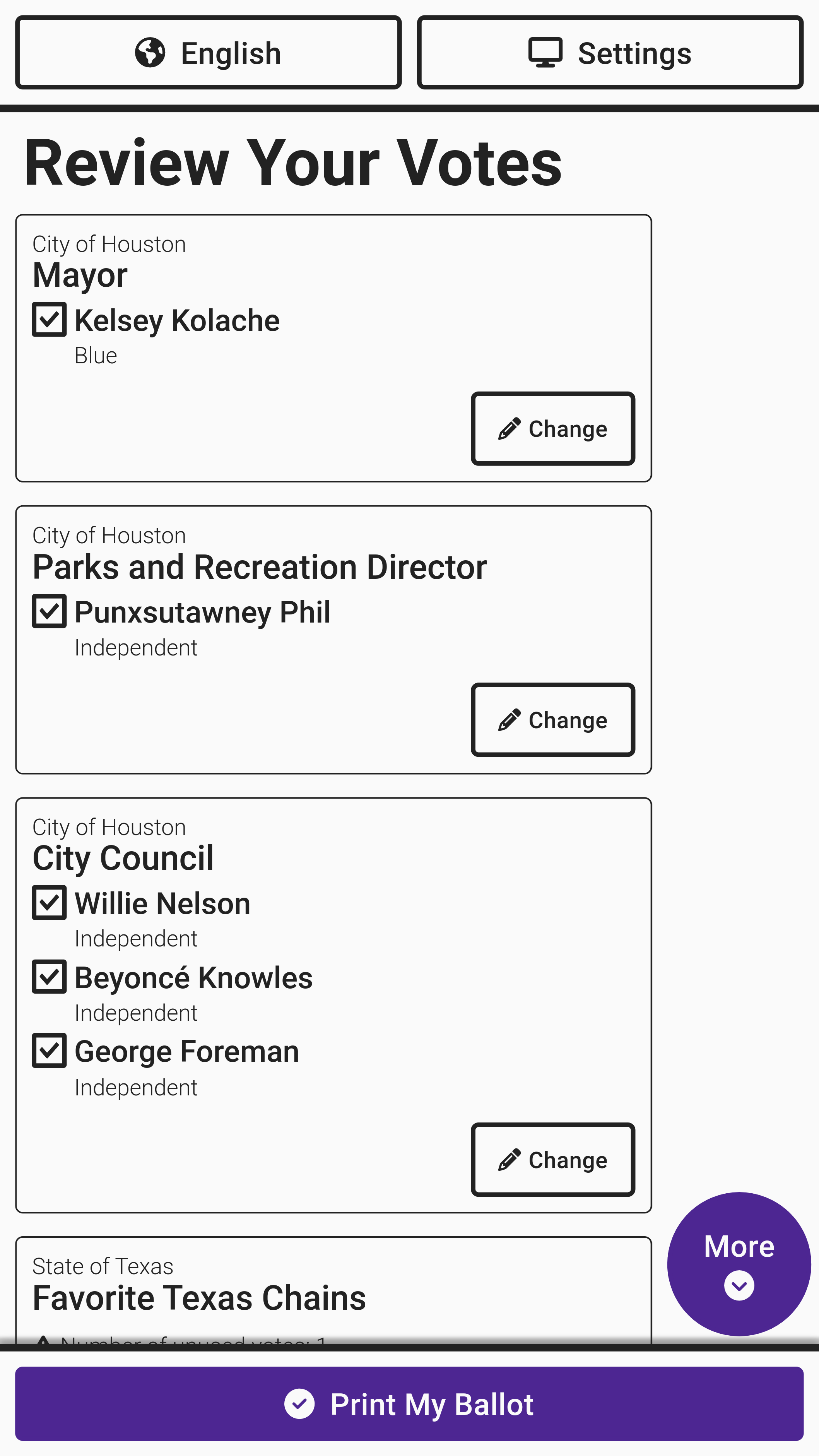
After working through all contests, a *Review Your Votes* screen appears that allows the voter to change any vote by selecting *`Change`*. Once selections have been reviewed, select *`Print My Ballot`*. The ballot will print and be displayed for review.
{% hint style="warning" %}
The "Ballots Printed" count in VxMarkScan intentionally increments up by one for all ballot prints, *including spoiled ballots*. Printing errors like jammed ballots and partial prints are also considered spoiled ballots. Spoiled ballots must be addressed procedurally with the assistance of a poll worker or election official and follow a jurisdiction-defined process for tracking through the end of the night. VxMarkScan counts every printing action so that election officials have clear information for their post-election precinct ballot accounting or reconciliation process.
{% endhint %}
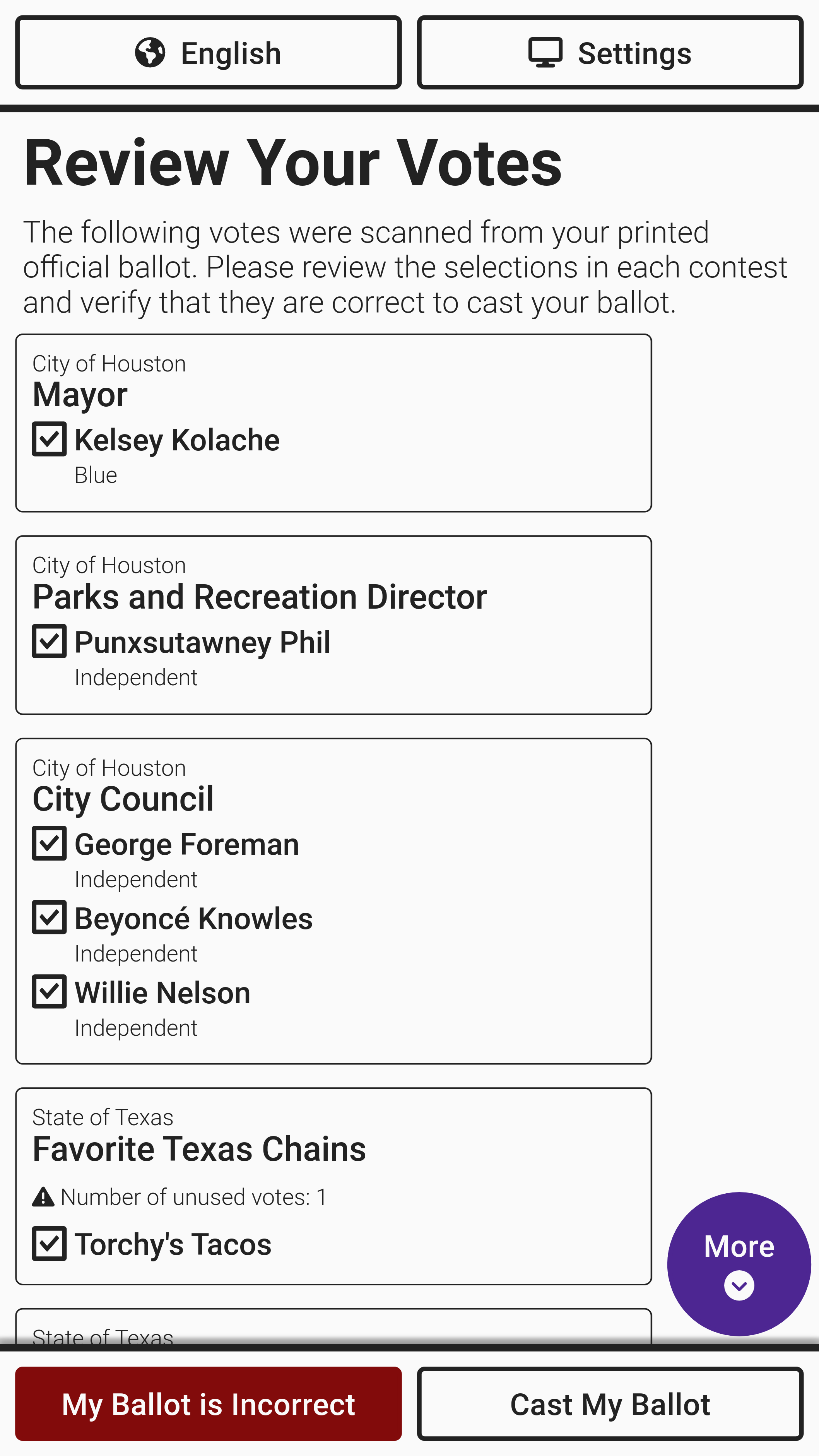
The final *Review Your Votes* screen is displayed to compare the official ballot selections with the screen. Select *`Cast My Ballot`* to cast the ballot.
{% hint style="warning" %}
If the voter removes the ballot from the printer to review, the VxMarkScan will ask if they are still voting. They should reload their ballot to cast the ballot. If the ballot is not reloaded, the VxMarkScan will clear the ballot after five minutes of inactivity.
{% endhint %}
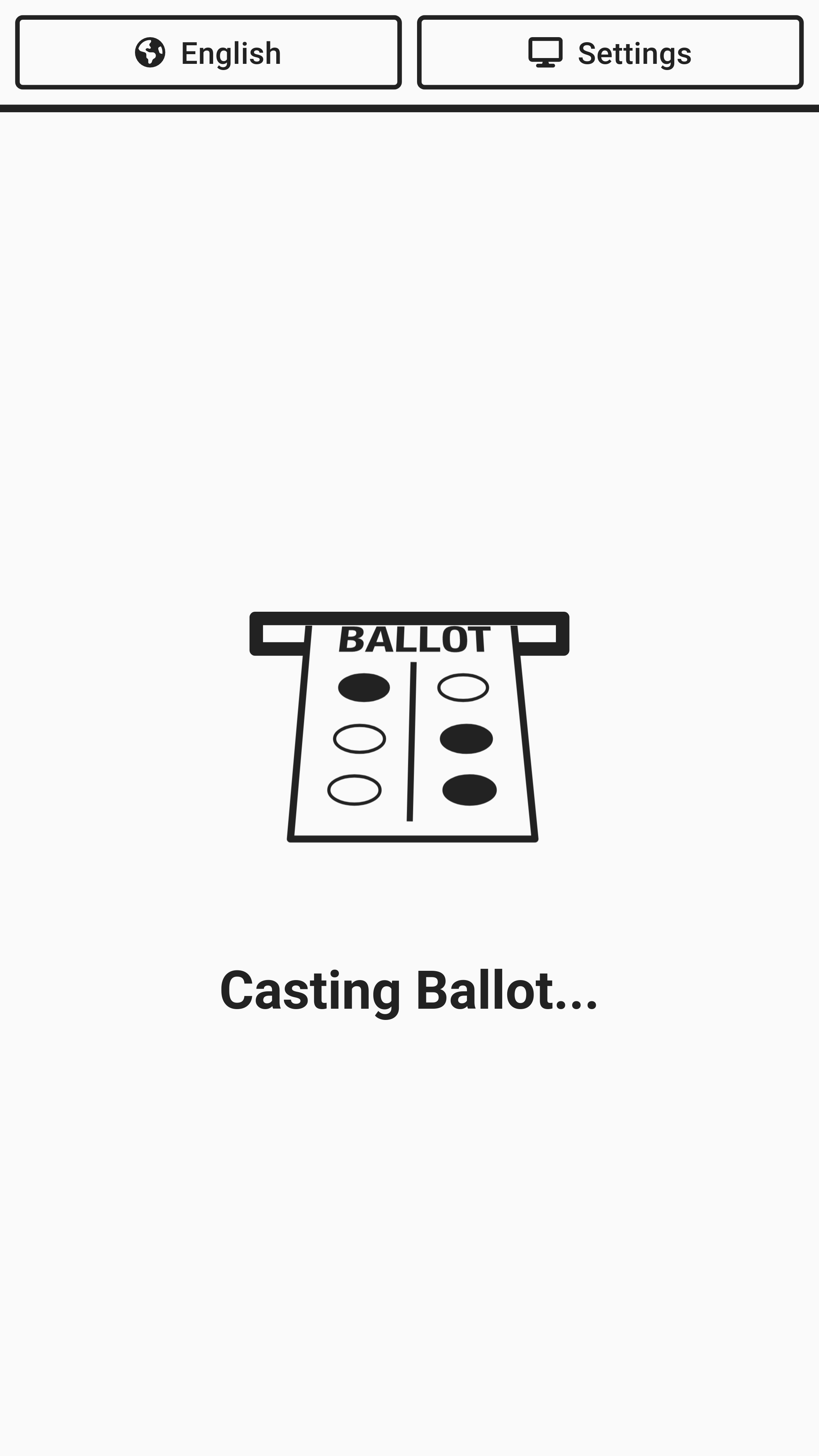
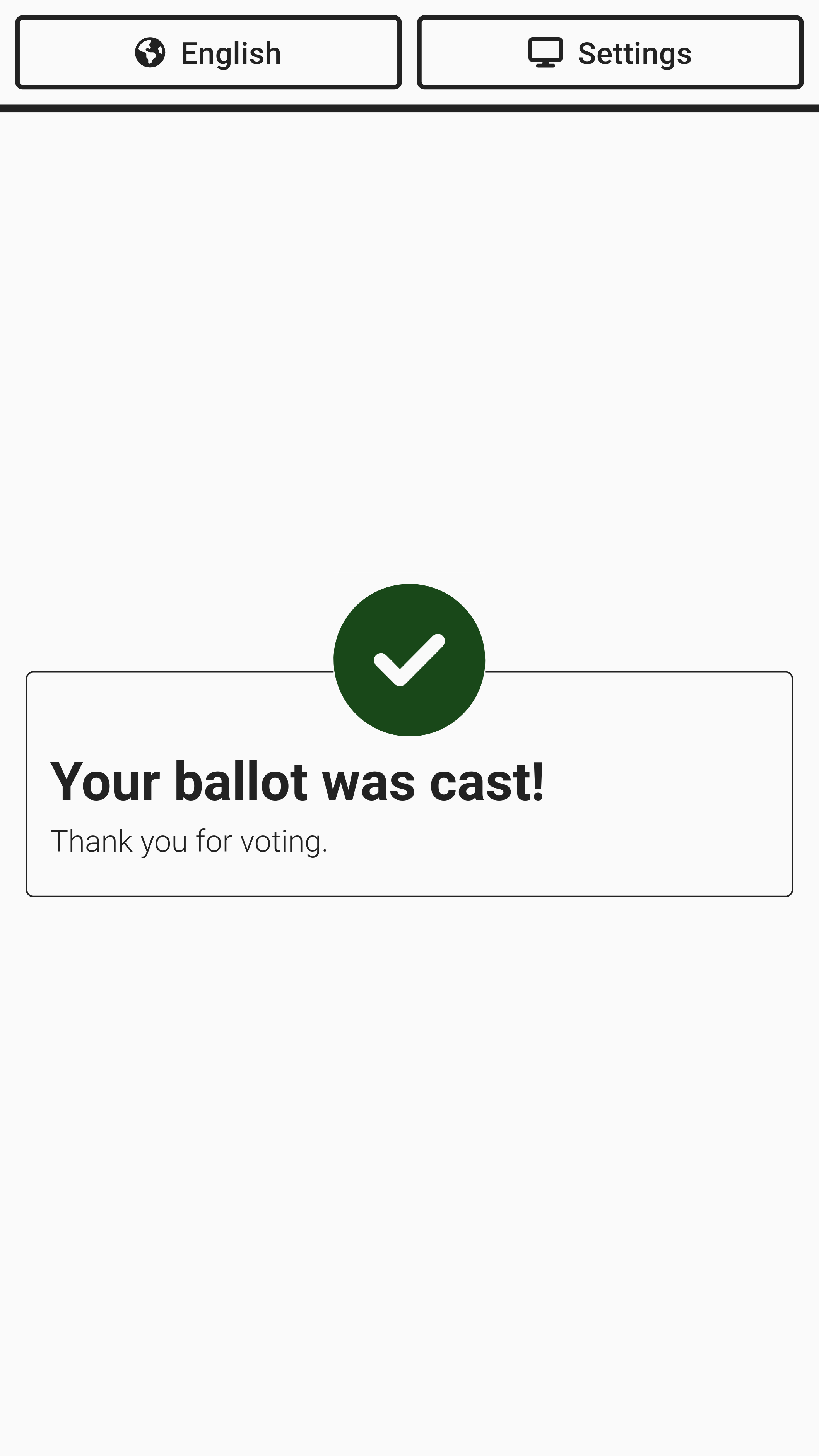
The screen will show the ballot being cast and verify it was cast and dropped into the ballot bin.
{% hint style="info" %}
If headphones are used, using earpad covers and replacing after use is recommended. See the [Supply List](/vxsuite-user-manual-v4/miscellaneous/supply-list.md) for more information.
{% endhint %}
---
# Agent Instructions
This documentation is published with GitBook. GitBook is the documentation platform designed so that both humans and AI agents can read, navigate, and reason over technical content effectively. Learn more at gitbook.com.
## Querying This Documentation
If you need additional information that is not directly available in this page, you can query the documentation by asking a question.
Perform an HTTP GET request on the following URL with the `ask` and `goal` query parameters:
```
GET https://docs.voting.works/vxsuite-user-manual-v4/vxmarkscan/voting-sessions.md?ask=&goal=
```
`ask` is the immediate question: it should be specific, self-contained, and written in natural language.
`goal` is what the user is ultimately trying to achieve, the reason they need the answer. Sharing it helps GitBook give you a better, more relevant answer. A goal is most helpful when it describes the outcome the user wants rather than restating the question. For example, with `ask=how do I create an API token`, a goal like `automate deployments from our CI pipeline` lets GitBook tailor the answer to that use case.
The response will contain a direct answer to the question and relevant excerpts and sources from the documentation.
Use this mechanism when the answer is not explicitly present in the current page, you need clarification or additional context, or you want to retrieve related documentation sections.